• Drawing Basics

Customizing Drawing Defaults

Although the appearance of all drawings on the platform can be customized, as described in the previous section, some more complex drawings also allow you to save your customizations as the default for future use. This can accelerate your workflow by preventing you from having to repeatedly make the same detailed customizations.

For example, if you prefer to monitor a specific set of Fibonacci retracement levels that are different than the platform defaults, you can easily configure the settings of the Fibonacci retracement tool to display only the Fibonacci levels that you’re most interested in. You can see this in action in the short video below.

When a customized drawing can be saved as your default, a checkbox that says “make default” will be displayed on the drawing’s settings window, as shown below.

Once you enable “make default” and save the settings, whenever you add one of those drawings to a chart, your custom settings will be used.


NOTE: Some customizable drawing tools are also included as part of the Smart Tools, and you can customize the behavior of the Smart Tools to use your default drawing settings. Learn more about this in the Wave Count Settings section.


Here’s an example of customizing a Fibonacci Retracement drawing and choosing to make our custom settings the default for future use.


Read More
  • Drawing Basics

Drawing Controls

The Drawing Controls are located toward the bottom of the left toolbar, and they affect all drawings on a given chart as follows…


From top to bottom:

Undo

Undo the most recent change to a chart. This applies to changes to indicator studies or drawings, including wave counts. To undo multiple previous changes, click the Undo button repeatedly, up to a total of 10 previous changes.


Redo

The opposite of Undo.


Draw continuously

By default, a drawing tool will automatically deactivate when you have finished adding a drawing to a chart. Enable the Draw continuously tool for occasions when you want to add multiple trend lines, shapes, or text, etc without having to re-enable the drawing tool after adding each drawing.

NOTE: This is also quite useful when combined with the Select Count Range tool.


Magnetize

By default, drawings are added to a chart exactly where you click on the chart while a drawing tool is active. Enable Magnetize when you want a drawing to “stick” to the highs and lows of the price series in the chart. This is particularly useful when you are drawing point-based drawing tools such as trend lines or Fibonacci levels, where precision and synchronization with price might be important.

When enabled, a small dot will be displayed along the price series, indicating where the next point of the active drawing tool will be placed upon your next click.

NOTE: The Magnetize control does not have any effect on wave drawings.


Hide drawings

Enabling Hide drawings will temporarily remove your drawings from the current chart, including any wave drawings or automatic wave counts. Click the button again to restore the drawings on the chart.


Clear drawings

Clicking this button will remove all drawings from the current chart, including wave drawings or automatic wave counts. This operation can be reversed by clicking the Undo button.


Read More
  • Working with Charts

Linking Charts

When studying two or more charts, it’s often useful to be able to link charts together so your cursor tracks synchronously in each chart. This is particularly helpful when viewing, for example, multiple charts of the same market symbol at different chart resolutions — the cursor is always positioned at the same x-y location in each chart.

NOTE: Linking charts can be particularly useful for keeping larger timeframe context in focus when performing multi-timeframe wave count analysis.


Click the Toggle Chart Linker in the top toolbar to turn on linking in your workspace. When toggled on, the Chart Linker icon is highlighted.


Once Chart Linking is enabled, clicking the link icon on a chart’s title bar adds the chart to the group of linked charts, which causes the cursor to track synchronously in each linked chart as shown below.


Chart linking demonstration animation


Once a group of charts has been linked, to disable linking you can either toggle off linking for the entire workspace, or you can remove individual charts from the group by clicking the link icon in the chart’s title bar.


The Linker Menu


The linker menu in the top toolbar allows you to link specific attributes of charts to help facilitate various custom workflows; namely: Link Symbol, Link Timeframe, Link Scroll And Zoom, and Link AutoCounts. These features help you perform certain tasks over multiple charts at once.

In order to use these features, you’ll need to have a tab that contains more than one chart. You can do this by selecting the number of charts you require from the chart layout button located in the top menu at the top of the screen. Once you have more than one chart open, you’ll want to make sure that you have Chart Linking enabled for your workspace and for the charts that you want to link, as described in the previous section.


Link Symbol

The link symbol feature allows you to change the symbol on one chart and have it change automatically for all of the other charts within the tab. This is useful for when you want to practice various forms of analysis on the same symbol, or view the same symbol at various timeframes simultaneously.


Link Timeframe

The link timeframe feature allows you to change the timeframe for all of the charts within one tab simultaneously. This feature is useful when you’re interested in viewing charts for multiple symbols at a particular timeframe.


Link Scroll And Zoom

The link scroll and zoom feature allows you to scroll and zoom on one chart and have all of the other charts within the tab scroll and zoom in the same way at the same time. This allows you to easily simultaneously view multiple charts over time.


Link AutoCounts

The link AutoCounts feature allow you to run an AutoCount on one chart within a tab, and have all of the other charts within the same tab run an AutoCount simultaneously. This allows you to view wave counts for multiple symbols with a single click.


Read More
  • Platform Settings

Smart Tools

The Smart Tools tab provides a convenient way to configure all of settings that affect the appearance and behavior of the various Smart Tools that are built into the platform. You can also access the most common Smart Tools settings from the Smart Tools and wave count settings menu, for added convenience.


Use My Default Drawings

If you have saved default settings for any of the Fibonacci-related or Pitchfork drawing tools, enable this setting to display your default drawings as Smart Tools, rather than the system defaults. This can be useful if, for example, you prefer to view different Fibonacci levels than the system defaults, or if you prefer to customize the colors and appearance of those tools.


Default Pitchfork Style

Here you can choose the type of pitchfork style you would like. You can choose between Andrew’s, Schiff, and Modified Schiff. Also, Show Smart Pitchfork must be enabled (see below).


Show Wave Lines

When enabled, hovering your mouse over a wave label will show the lines connecting the subwaves of the wave pattern.


Show All Wave Lines

Click this to toggle on and off the lines between all wave points currently on the chart.


Show # Of Bars On Waves

This feature determines whether or not the number of bars a wave contains is displayed next to their respective wave labels on the chart.


Show Wave Info

If this feature is enabled, hovering (or touching) a wave label will display critical details about the wave.


Show AutoCount Start

When you enable Show AutoCount Start, a “blue dot” will appear on your chart to let you know where a new automatic wave count will start if you run one.


Learn more about Automatic Pivot Detection.


Show Smart Fibs

When enabled, hovering your mouse over a wave label will automatically show Fibonacci retracement or extension levels, depending on the wave. All of the Fibonacci-related settings below require that Show Smart Fibs is enabled.


Show Fibonacci Percentage Levels

This feature allows you to enable whether you will see the Fibonacci percentages of the retracement or extension levels labeled on your chart when you hover over waves.


Show Fibonacci Price Flags

When this feature is enabled, you’ll see a price flag plotted on the price axis within your workspace. The result will look similar to the current price’s price flag.


Smart Fibonacci Levels Extend Right

This feature extends the Smart Fibonacci tool lines continuously to the right; so as you scroll, the levels will extend indefinitely or; for as long as the chart can scroll.


Smart Fibonacci Levels Extend Left

This feature extends the Smart Fibonacci tool lines continuously to the left, so as you scroll, the levels will extend indefinitely or for as long as the chart can scroll.


Show Fibonacci Price Levels

When this setting is enabled, you will see the price at which each Fibonacci percentage point/line resides labeled on the chart.


Learn more about the Smart Fibonacci tool.


Show Support/ Resistance

When enabled, as you hover over a particular wave, WaveBasis will display a projection of the target support/resistance level of the next wave, in the form of a colored box. This tool does not define an exact point of where the support and resistance will be, but instead displays the most likely range of support/resistance areas. Learn more about Smart Support/Resistance.


Support/ Resistance Matches Wave Color

If this feature is enabled, the support/resistance box’s color will match the wave pattern’s color. When this feature is disabled, all support/resistance zones will be displayed in green.


Support/ Resistance Extend Right

By default, support and resistance areas will only extend a small distance to the right of the wave label for the target wave. Enabling this seeting extends the support/resistance box continuously to the right, so as you scroll, the support/resistance box will expand indefinitely or for as long as the chart can scroll.


Show Smart Pitchfork

When enabled, hovering your mouse over a wave label will automatically show the Smart Pitchfork tool on the relevant wave.


You can read more about Smart Pitchforks.


Show Smart Fans

When enabled, hovering your mouse over a wave label will automatically display the Fibonacci Fan retracement levels which are most relevant for that particular wave.


Show Smart Arcs

When enabled, hovering your mouse over a wave label will automatically display the Fibonacci Arcs which are most relevant for that particular wave.


Show Smart Elliott Channel

When enabled, hovering your mouse over a wave label will automatically display the Elliott channels which are most relevant for that particular wave.


Read our complete guide on Smart Tools.


Read More
  • Platform Settings

General

The General tab allows you to configure settings that affect your entire WaveBasis workspace.


Color Theme

You can choose between two themes; light and dark mode.


Show Chart Resolution On Tabs

When enabled, your tabs will display the resolution/timeframe of the last chart that you clicked on the last time you viewed that tab. The timeframe is displayed in the top right corner of the tab, as shown below. This can help you keep track of your tabs for more complex workflows or monitoring multiple markets.


Show Number Of Charts On Tabs

When enabled, the number of charts that are displayed on a particular tab is displayed in the lower left corner of the tab. This is can help navigating between tabs more efficient.


Learn more about tabs.

Read More
  • Using The Smart Tools

Wave Count Settings

This section has been updated and moved to a new location.

Read More
  • Working with Charts

Sharing Charts

NOTE: Using the chart sharing feature is the best and fastest way to get support from the WaveBasis team if you have questions about a specific chart or wave count. Shared charts can be loaded directly into a WaveBasis workspace, so we’re able to provide the most effective, robust, and relevant support when we’re able to see exactly the chart that you’re analyzing. A picture speaks a thousand words, and a live chart speaks much more!

Sharing charts is a convenient way to share your market perspectives and forecasts with your friends or colleagues, or to your followers on various social media platforms and trading groups. You can share links to images of your charts, print them out, or you can post them directly to your Twitter account.

Also, shared charts can be easily loaded into a WaveBasis workspace as a live chart by clicking anywhere on the image of the chart that is displayed at the link. So, not only can you show your market perspectives to other traders, but by loading the live charts into your workspace you can easily collaborate on chart ideas and wave counts.


TIP: If you’d like to save the image of your chart as a file on your computer, then paste the link in a new browser tab. Once the chart image has loaded, right-click on the chart and save the image.

TIP: You can print shared charts directly from your browser, using your browser’s built-in print feature. Or, once you’ve saved the image file to your computer, you can print it the way you would print any other image file.

How do I do it?

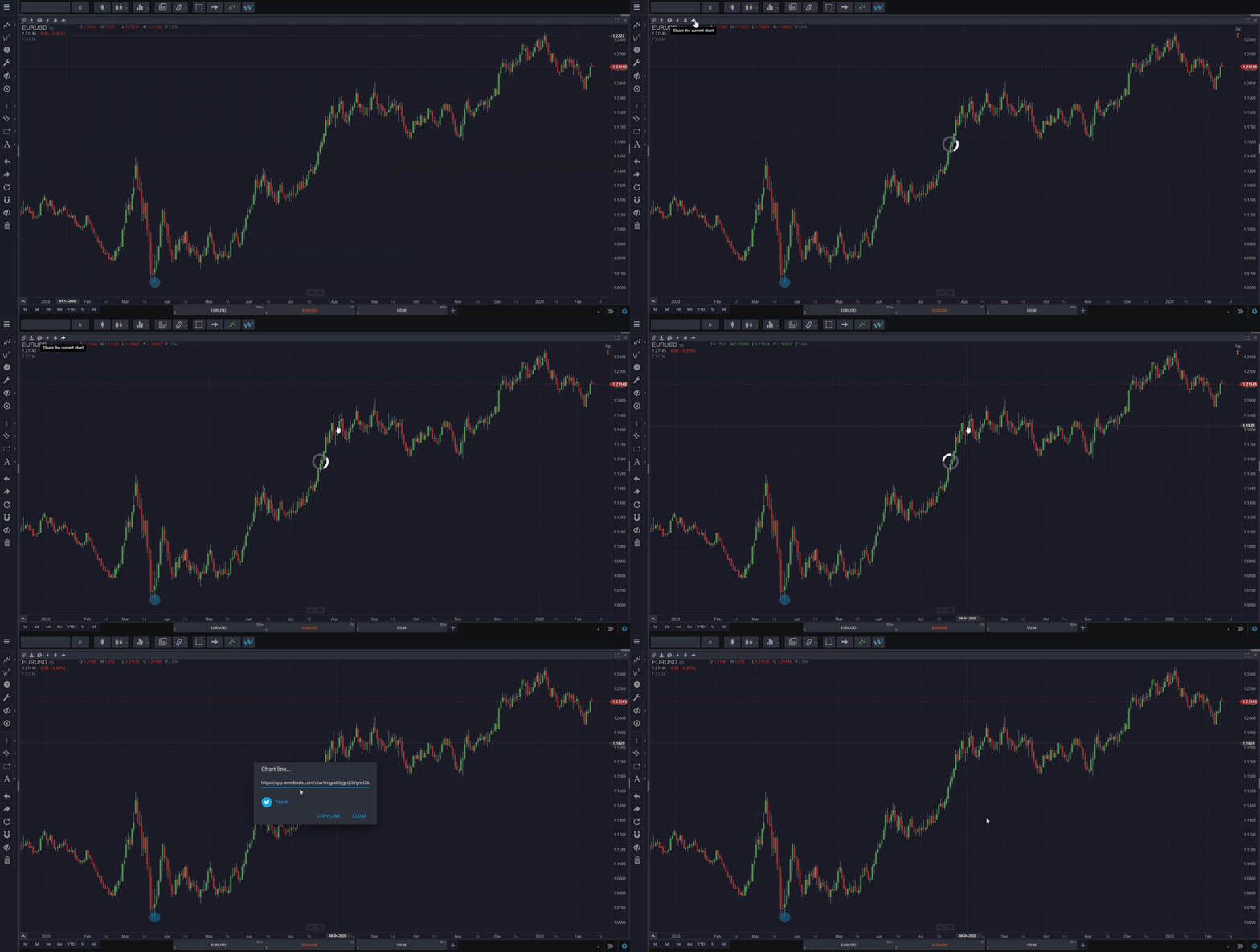
To share a chart, just click the “share the current chart” icon in the title bar at the top of the chart, as shown in the short video below. Your chart will then be converted to an image, and when this processing is finished, a link to the chart image will be displayed.

If you see a “Copy Link” button, then simply click it to have the link copied to your clipboard so that you can paste it somewhere else, such as an email or social media post, or directly in the address bar of your browser. If you don’t see a “Copy  Link” button, then the link has already been copied to your clipboard, so you can go ahead and paste it where you like.

If you’d like to post your chart to Twitter, simply click the “Tweet” button.


Read More
  • Platform Settings

Chart Settings

The Chart tab includes settings that affect the appearance and behavior of all of the charts in your workspace.


Zoom Speed And Sensitivity

Use this to set the sensitivity of charts when you are panning or zooming. It enables you to get the glance you want; at the pace you prefer.


Link Symbol

This feature allows you to change the symbol of one linked chart and automatically change the tab’s subsequent linked charts to the same symbol.


Link Timeframe

This feature allows you to change the timeframe of one linked chart and automatically change the tab’s subsequent linked charts to the same timeframe. This feature is useful if you like to view how different instruments are behaving at the same timeframe.


Link Scroll And Zoom

This feature allows you to scroll and zoom across all linked charts within a tab simultaneously.


Learn more about linking charts.


Show Exchange Name Under The Ticker

Enable this to show the name of the exchange under the ticker in the upper left corner of charts. This is useful when a symbol is traded on multiple exchanges, and you want to make sure you’re always using your preferred exchange.


Show Symbol On Chart Background

Enable this to display the chart’s current instrument name and the chart’s current resolution/timeframe on the chart’s background.


Show Description On Chart Background

Enable this to display the full description for symbols on chart backgrounds.


Precise Chart Zooming (Also applies to Scrolling/Panning)

This feature refers to how fast and precisely the chart moves when you drag it left or right. If this feature is enabled, you will be able to pan faster without the chart continuing the panning effect once you stop the zooming/scrolling/panning action.

NOTE: After making a change to this setting, please refresh WaveBasis in your browser for the change to take effect.


Show Indicator Values On Panels

This feature allows you to see the output value of an indicator on the indicator’s panel. This feature is useful if you prefer to look for setups based on indicators.


Indicator Values Follow Mouse Cursor

This feature tracks the value of the output of an indicator as you move your mouse. This feature is useful if you track how the value of an indicator changes over a specific period.


Learn more about working with charts.

Read More
  • Platform Settings

Waves

The Waves tab includes settings to allow you to customize the appearance and behavior of waves that have been added to charts. These settings apply to all waves that are on a chart, whether they were calculated automatically or drawn manually.


Show Waves In One Color

By default, each wave degree of a wave count is displayed in a different color. Enable this setting if you prefer to see all waves and degrees in the same color.


Let WaveBasis Manage Wave Degree

This feature refers to the waves that you manually draw on your chart. It automatically assigns wave degrees to manual waves as you draw them in and around other waves, saving you time by speeding up your workflow.


Learn more about drawing manual waves.


Waves On All Timeframes

Enable this to display waves and patterns on all timeframes, rather than just on the chart timeframe that was active when the waves were added to the chart. Learn more about this in the Wave Count Settings section.


Protect Waves During Drawing

This feature allows you to draw technical analysis tools such as trendlines, text, and shapes on your chart without accidentally moving the waves that have already been added to the chart. When this feature is enabled, you can only move waves when you’re not using drawing tools.


Scale Font By Wave Degree

Enable this to automatically display waves at lower degrees with a smaller font.


Learn more about Wave Count Settings.

Read More
  • Platform Settings

AutoCounts

The AutoCounts tab allows you to choose how you’d like AutoCounts to behave, giving you the ultimate control over your analysis. The most common wave count settings can also be configured from the Automatic Wave Counts menu.


Date Range To Analyze

The Auto Counts tab lets you choose the date range you would like to include when analyzing the price via Auto Count.


Learn more about date ranges.


Link AutoCounts

This feature allows you to run AutoCounts for more than one chart simultaneously, as long as the charts are within the same tab.


You can read more about linking.


Alts For Subwave Counts

Enable this to display alternative wave counts for subwaves. Learn more about this feature in the Wave Count Settings section. This feature is exclusively available on the Trader and Active Trader plans.


Count Bias

This feature will allow you to choose whether you prefer to run AutoCounts with an impulsive, corrective, or neutral bias. You will notice fewer diagonals if you choose “Impulsive” as your count bias.


Read more about AutoCounts.

Read More