Once you run out of wave counts, you won’t be able to calculate any more AutoCounts or use the Wave Scanner gadget for the current calendar month. We encourage you to learn how monthly wave count usage works.
If you trade many markets, trade very frequently on small timeframes, or if you find the limitations of your current plan overly confining, you may wish to consider upgrading your plan or reaching out to our support staff to discuss your options.
The most common reason for not finding reliable wave counts and trade setups is not choosing a meaningful and consistent starting point for your wave counts. Unfortunately, this mistake is also very often the cause of wave counts changing in unexpected ways.
However, if you’re already confident that the starting point of your wave counts is not the problem, please contact us at support@wavebasis.com for additional guidance and support.
NOTE: It’s also important to keep in mind that there is almost always more than one valid wave count for a given market and timeframe. So, the ranking order between alternate wave counts can change from one wave count calculation to the next depending on how much time (and market action) has elapsed between calculations. So, you should always pay close attention to the Alternate Wave Counts gadget listing if the gadget is included in your plan.
A common reason for suddenly missing waves on a chart is having the Hide Waves Below tool activated.
So, if the feature is currently activated, click it to deactivate it, and wave counts should return to being displayed as per usual.
While it may appear attractive to scan an entire exchange or a long list of symbols at once, the Wave Scanner is not intended to be used as a signal generator or the way one might use a typical “screener”. In addition to adding one symbol at a time to your scans, you can also add entire watchlists to the Wave Scanner with a single click. However, this is a case where “more” is not necessarily “better”.
NOTE: Trading is not a game of chance, it’s a game of skill. So you don’t increase your “odds of winning” by looking at more markets. Success in trading is accomplished by sharpening your skills, and WaveBasis offers the tools and guidance to help you do that.
Each scanner result is a wave count, and while it’s often the case, not every result will be well-structured, fully reliable, and ready to be traded. For this reason, all scan results should be evaluated in the same way that any other wave count would be. In addition, it’s particularly essential to make sure that scanner results include meaningful wave count starting points. Therefore, it’s best to consider each scan result as a part of the starting point for your continued analysis.
Perhaps even more importantly, scanning a large number of markets, such as an entire exchange, would generally produce quite a large number of results, and evaluating a large number of wave count results in a reasonable amount of time would be unwieldy and impractical.
You should be able to easily find a rich and promising set of results by scanning a deliberately selected group of symbols that interest you. We have written a comprehensive article that provides excellent guidance on how to get great results with the Wave Scanner by working smarter, not harder. This is in line with our aim to encourage Elliott Wave analysis best practices.
If you need further support, please contact us via support@wavebasis.com, and we’ll be happy to assist.
Refreshing your browser tab can often resolve intermittent issues.
If a browser refresh doesn’t do the trick, please tell us more about what you’re experiencing by letting us know exactly what is happening. For example, explanations like “When I do X, Y happens.” are extremely useful in helping to diagnose and resolve issues. Also, any additional details or screenshots that you can provide would be helpful.
The more detail about your problem you provide, the more effectively and efficiently we’ll be able to assist.
We’re always happy to provide feedback and guidance on specific charts or wave counts! To give you practical support, please feel free to share any charts that you have questions about using the chart sharing feature. We’ll reply promptly with answers to your questions and any other comments that might be relevant.
Once you’ve prepared all the essential information, you can report any problems to us by emailing support@wavebasis.com or by clicking the “How can we help?” button listed below each page in our support documentation and sending us the details of the problem via the “Contact Us” form that pops up.
WaveBasis helps you maximize your alignment with market probabilities using the time-tested principles of Elliott Wave analysis and a collection of powerful and unique tools, including automatic wave counts. However, not all automatic wave counts should be considered automatic signals or predictions.
While it’s often the case, not every automatic wave count result will be ready to be traded immediately, and as they say, “sometimes the best trade is no trade”. Therefore, all wave counts should be carefully evaluated using the powerful tools provided by the platform before risking any capital. In addition, it’s particularly essential to make sure that you’ve considered meaningful wave count starting points. It’s best to consider each automatic wave count as giving you a big head start advantage for your continued analysis and decision-making.
Most importantly, one of the major benefits of Elliott Wave analysis itself is the ability to anticipate market movements and trade setups rather than chasing markets using signals, for example. This more focused approach allows you to plan a trade well in advance, which we refer to as “letting the market come to you”. You can learn more about this approach here:
WaveBasis helps you perform comprehensive Elliott Wave analysis in a fast and efficient manner. The platform allows you to understand and take advantage of statistical probabilities and so does not encourage guarantees. As you familiarize yourself with the platform, you’ll get better at refining your analysis to ensure you can consistently identify high-probability trade setups. It’s also critically important to first establish long term wave count context. You can see this demonstrated in this important video.
Although some of our traders have found some success using WaveBasis for trade signals, for best results, it’s important to understand that the information that the platform produces is not intended to be traded blindly as signals.
The information you see in the gadgets and Smart Tools is objective, probability-based information, and it’s also intended to help you learn and apply the Elliott Wave approach quickly and reliably. Therefore, it would be best to gain some expertise regarding various aspects of the Elliott Wave approach, such as gaining some understanding of the various patterns that comprise the approach.
If you’re looking to learn more about the rules that govern various patterns within Elliott Wave Theory, you can use the interactive wave guide. It shows you idealized diagrams of all of the standard Elliott Wave patterns, along with a list of the key rules and guidelines associated with each pattern.
WaveBasis is not intended to replace properly conducted Elliott Wave analysis; it is intended to make it much faster, easier, more precise, and more focused on probabilities. It does much of the work for you, but not all of it!
We strongly recommend using the Google Chrome browser because of its superior performance characteristics and better support of the advanced browser features that WaveBasis utilises. Although WaveBasis works in all major browsers, a few users have reported issues with initial logins when using Microsoft Edge, so we’d recommend Google Chrome instead.
Not being able to meaningfully identify uniform wave count contexts over different timeframes is a common struggle traders can face when working to gain Elliott Wave expertise.
The first best general advice we can give you is that, in the context of multiple timeframes, you should generally be analyzing/trading one count at a time. If you find yourself with disagreement between counts at different timeframes, as they say, “you’re doing it wrong”.
Wave count context
The recommended workflow is to decide on a larger timeframe count(s) and then use smaller timeframes to refine the wave count toward making a trading decision. The timeframes that you choose should be relevant to and based on your trading objectives with regard to time horizon.
A common mistake is attempting to compare wave counts at multiple timeframes rather than considering smaller timeframe wave counts within the context of larger timeframe counts. Several of our tutorial videos discuss the topic of wave count context.
This typical Elliott Wave analysis process is analogous to finding a route or location on an online map. You typically start zoomed out, then progressively zoom in to find your destination. We’re sure you can imagine how confusing it might be to try to navigate by comparing different snapshots of different map areas at different zoom levels. It’s no different with Elliott Wave analysis – maintaining consistent higher timeframe context throughout all phases of your analysis (“zooming in”) is critical.
So again, smaller timeframe counts should always be consistent with the larger timeframe count, rather than independent counts – again, just like with a map.
In this regard, a few features built into WaveBasis are specifically intended to help make working from higher to lower timeframes more natural, streamlined, and consistent.
For example, you can enable the Waves on all timeframes feature, which will allow you to move freely between different timeframes while retaining the same wave count context – just like a map.
More specifically, if your starting timeframe is a daily chart, for example, rather than running a wave count on a separate chart at a smaller timeframe, you can simply switch your daily chart to your target timeframe and use the Count Subwaves feature on the smaller timeframe to refine your analysis.
The “Alts for subwave counts” feature can also be useful in this context and is also discussed in the blog article linked above.
Another way to advance your analysis from higher to lower timeframes is to use the Timeframe Drilldown feature. This is particularly useful in scenarios when it might be preferable to view higher and lower timeframes on separate charts.
If you’re intent on ignoring this guidance by comparing the same wave count on two different timeframes, there’s nothing to stop you from doing that. However, please at least make sure you begin your wave counts at the same starting point. We recommend an article on our blog that addresses starting your wave count at a meaningful place since it’s also relevant in the context of multiple timeframe analysis.
The WaveBasis tools will accelerate your learning, while at the same time they’ll provide immediately actionable insights – that can’t be found anywhere else – right from the first click.
If you’re already a more advanced Elliott Wave practitioner
WaveBasis will accelerate your workflow in ways you haven’t even dared to dream. You can produce complete valid wave counts in a fraction of the time that you’re used to, and evaluate wave count alternatives using a combination of our automated and manual tools (and our Smart Drawing Tools). WaveBasis anticipates your needs and speaks the same language you do.
It’s never been faster or easier to harness the power of Elliott Waves in your trading.
The Wave Scanner gadget gives you the power to search for your favorite Elliott Wave trade setups across an entire list of market symbols with a single click. It’s the fastest way to draw your attention to your most preferred potential trading opportunities.
Never miss another great wave setup!
You decide which wave setups, markets, and timeframe you’re interested in. Then with one click, the scanner will search for those setups and display the ones that match your criteria. You can also choose from a collection of powerful filters to display only the setups that best meet your trading objectives.
Feature highlights
Your favorite trade setups – Automatically scan wave setups that you choose
Watchlist integration – Conveniently select one of your watchlists to scan (or enter market symbols individually)
Next Subwaves integration – All scan setups are complete wave counts that can be inspected in the Next Subwaves gadget
Chart integration – Trade setups can be quickly highlighted on charts with one click
Advanced filters – Customize scan results to only find trade setups that meet your specific criteria
Save and re-use scans – Once you create a scan, it’s saved in your workspace so you can easily re-run it later
NOTE: The Wave Scanner is not a substitute for critical analysis. For best results, you should consider results from the scanner as a starting point for deeper inspection using the many tools that the WaveBasis platform provides for pro-caliber Elliott Wave analysis.
How do I use it?
Select the Wave Scanner gadget from one of the gadget menus, as you would any other gadget. Once the gadget is open in your workspace, you’re ready to create your first scan.
Click the “+” button in the top right corner of the Wave Scanner to open the scan pop-up dialog. The dialog includes several tabs to allow you to select markets to scan, as well as to precisely define the types of trade setups you would like to scan for:
General
The General tab allows you to give a name to your scans. If you’re scanning for Futures trades, you might name it “Futures”, or if you want to have some fun, you can name it “back to the futures”. It’s up to you.
You can also add some notes to describe your scan. Notes are just for you and they don’t have an effect on the scan results. It’s an effective way to remind yourself of the intention of a particular scan or write down any useful details.
Setups
The Setups tab is where you can select the Elliott Wave setups that you would like to scan for. You must choose at least one wave setup before you can save your scan.
Symbols
Here you can select the symbols you’ll be scanning. You can add any symbol that is included in your subscription plan.
Enter symbols to scan by typing them one at a time into the Selected symbols area, or…
Choose one of your watchlists from the dropdown menu to add some or all of the watchlist’s symbols to your scan
When a watchlist is displayed, simply click on a symbol to add that symbol to the scan
Click a symbol in the Selected symbols list to remove it from the scan
NOTE: To add a symbol from a specific exchange, follow this format: “Exchange:symbol”, for example “NASDAQ:AAPL”.
Timeframe
The Timeframe tab lets you choose which timeframe and time range that you would like to scan. This is where the scalpers get separated from the swing traders.
You define the time-related aspects of your scan using the following parameters:
Bar width and Bar resolution
These parameters work together to define the size of each price bar in your scan, for example “1 Hour” or “30 Minute”.
Time range and Time interval
These parameters work together to define the amount of past price history to be included in your scan, for example the “Last 90 Days” or the “Last 2 Weeks”.
A simple way to think about this is:
Bar width + Bar resolution over Time range + Time interval
For example, 4 + hour bars over the last 60 + days
NOTE: If you already have a specific start date in mind, you can select it using the Start date field, and your start date will override the Bar- and Time-related settings described above.
Filters
Refine your scan by filtering for specific criteria (Only available with the Trader and up plans).
Here’s the fun part. In the Filters tab, you’ll be able to fine tune the scanner to search for your ideal trade setups. You’ll have the following options:
Minimum rating
Use this to ensure that scan results will only be displayed if they have a rating equal to or above your selected minimum rating. The scanner uses the same rating scale that is included in the Next Subwaves gadget.
Minimum projected gain
Use this to set the minimum percentage change in price you’re looking for. You can set this from as low as 1% to as high as 30%, depending on your trading objectives and the symbols you are scanning.
Wave status
This is an indication of your preference with regard to whether the market has already moved far enough in the direction of the next wave to consider the setup confirmed. Remember that the more confirmed a wave is, the lower the reward/risk ratio will be. Strike a balance between the Wave Status and Minimum rating parameters. Learn more about wave status in the Next Subwaves gadget section.
Target status
This is an indication of your preference for how close the market is to the minimum target price for the wave(s) you are scanning for. As above, you should aim to find a reasonable and realistic balance between Target status and Minimum rating.
Count bias
Some traders prefer to stick to impulsive moves, while others feel comfortable trading corrections. The Count Bias parameter will give you the ability to choose which you prefer. If you would like to scan for both impulsive and corrective patterns, make sure you select “Neutral” as your count bias.
Show buy setups
If you want the scan results to include buy setups, make sure that this parameter is enabled.
Show sell setups
If you want the scan results to include sell setups, make sure that this parameter is enabled.
Short term setups only
When enabled, the scanner will only display setups that are at lower degrees of any wave counts that are found during a scan. What is considered lower degree will be dependent on your Timeframe settings.
Include alternate counts
By default, only the highest ranked wave count is scanned for matching setups. When “Include alternate counts” is enabled, scan results will also include matching setups in any of the 4 highest-ranked wave counts.
Exclude diagonals
If you’d like the scanner to ignore patterns that contain diagonals, make sure this feature is enabled. This is useful for refining a scan to indicate your preference for Elliott Wave standard impulse patterns.
Interacting with scans in the scan list
Once you’ve created and saved a scan, it will appear in the list of scans displayed in the main gadget window. The list displays the name of the scan along with its status and the last time it was run.
You can sort the list by Name, Status, or Last Run by clicking the corresponding header in the table.
Hovering your mouse cursor over a scan in the list will display a toolbar containing familiar tools as shown below:
Running a scan
Click the Run button on the toolbar as shown above to start a scan.
While the scan is running, its status will display as “Scanning…“.
When the scan is complete, its status will display as “Ready“.
Click a scan’s name in the list to open the results area under the scan.
While the scan is running, results will be displayed in the results area under the scan as trade setups are found. You can review and interact with a scan’s results while the scan is still running.
NOTE: While a scan is running, the Run button turns into a Cancel button, so that you can cancel a running scan before it completes.
Viewing scan results
Click the name of a scan (or the arrow next to the name) to display the results area. Each scan result in the list highlights a potential trade setup as defined by the options you have selected for the scan.
Clicking a result will display the trade setup on the current chart, along with the complete wave count that the setup was found in. The corresponding target area for the setup is also highlighted (this requires that you have the Support/Resistance Smart tool enabled).
This allows you to quickly assess the potential setup in the proper context right on the chart. The wave count displayed on the chart is just like any other wave count in your workspace. This means you can interact with it using all of the platform tools that you’re used to.
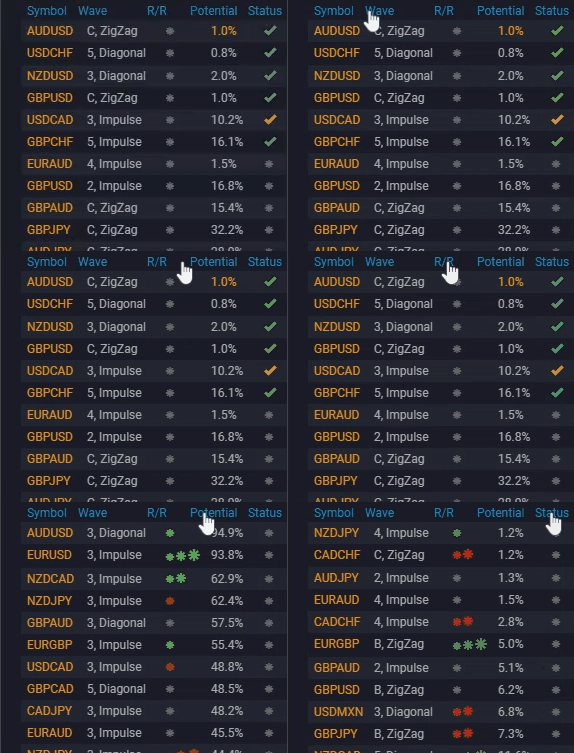
NOTE: you can easily sort the results of each scan by clicking titles of each column in the scanner results, as demonstrated below:
If you’ve used the Next Subwaves gadget, the columns in the scan results list will be familiar:
Symbol – The market symbol the setup applies to
Wave – The wave and pattern name for setup
R/R – This is the ranking for the expected profit potential (Reward/Risk) suggested by a particular wave setup. It will show a number of colored stars from zero to a maximum of 3
Potential – The profit potential of the setup in percentage terms from the current market price to the projected target
Status – This is an indication of whether the market has already moved far enough in the direction of the next wave to consider the setup confirmed. An orange checkmark means the setup is close to being confirmed, while a green checkmark indicates that the setup has been confirmed. A red circle with a line through it indicates that the wave projection is invalid, which usually means that the count should be recalculated to include the most recent market activity.
NOTE: R/R is only included with the Trader and up plans. Lower plan levels indicate whether the setup is a long or short trade.
Running simultaneous scans
Trader and up plans allow multiple scans to be run at the same time for those who are in a hurry!
Important Note
Scan results are not currently saved between WaveBasis sessions. So, if you would like to track or further analyze particular individual scan results, we recommend that you open them in your workspace and/or save them to your chart manager before reloading, closing, or logging out of WaveBasis.