One of the most common struggles when learning to applying the Elliott Wave approach is deciding where to start a wave count. The built-in Automatic Pivot Detection in WaveBasis solves this problem once and for all. We’ve effectively removed the guesswork from the process.
Since it’s built in, you don’t need to do anything to enable Automatic Pivot Detection. However, enabling the Autocount Start Smart Tool is recommended, even for experienced Elliott Wave practitioners.
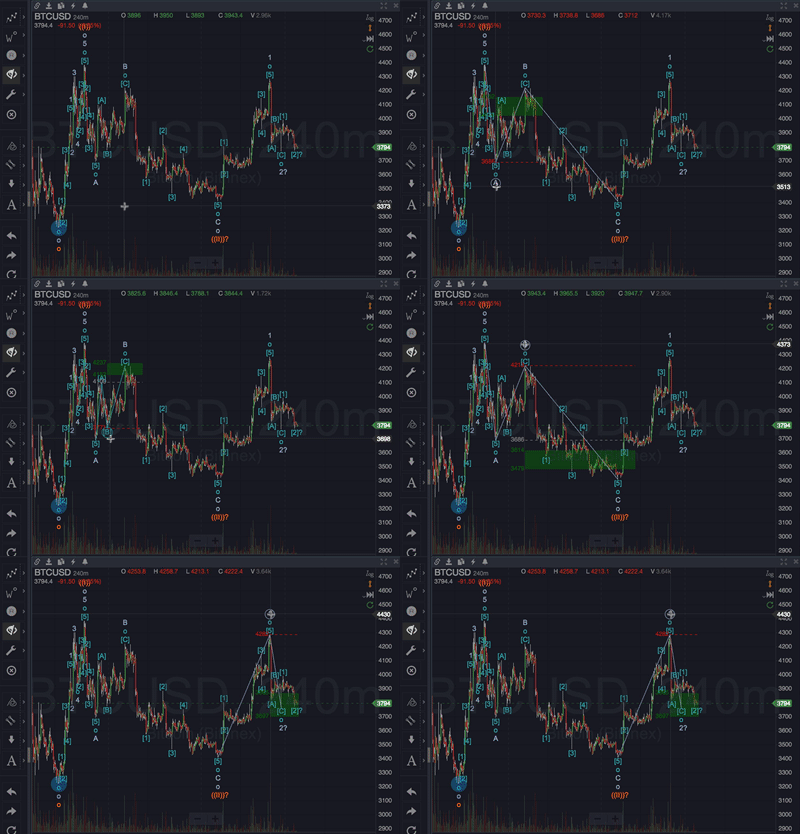
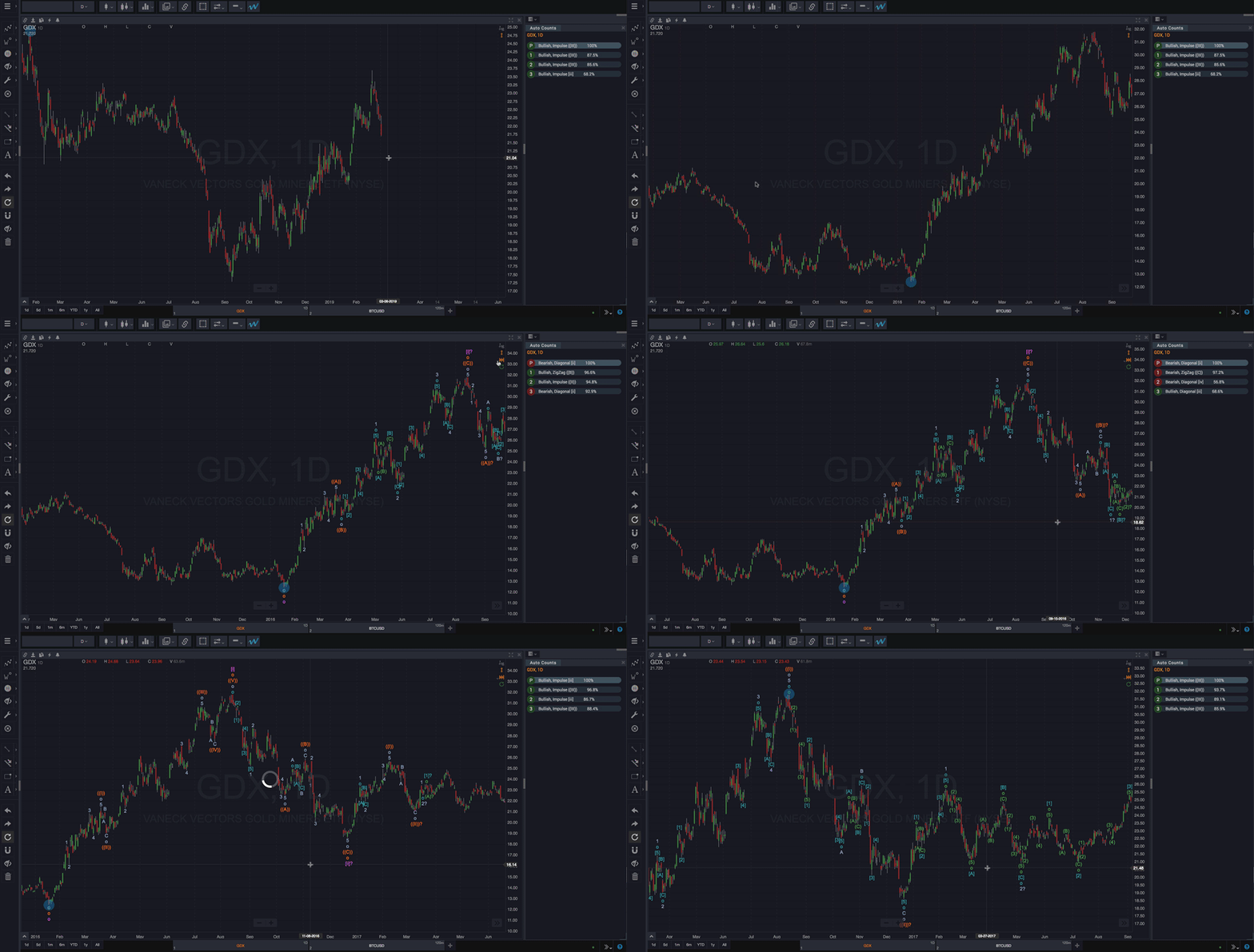
When you enable Show Autocount Start from the Smart Tools menu, a “blue dot” will appear on your chart to let you know where a new automatic wave count will start if you run one. The blue dot is also useful if you count Elliott Waves manually, since it’s an indication of the most relevant market turning point in a particular chart range.
NOTE: The position of the Autocount Start indicator depends on your current automatic wave count Date Range setting. So, for example, if you have selected a fixed range (eg, Last 250 bars), the Autocount Start Indicator will be positioned at the most sensible starting point within the selected fixed range.
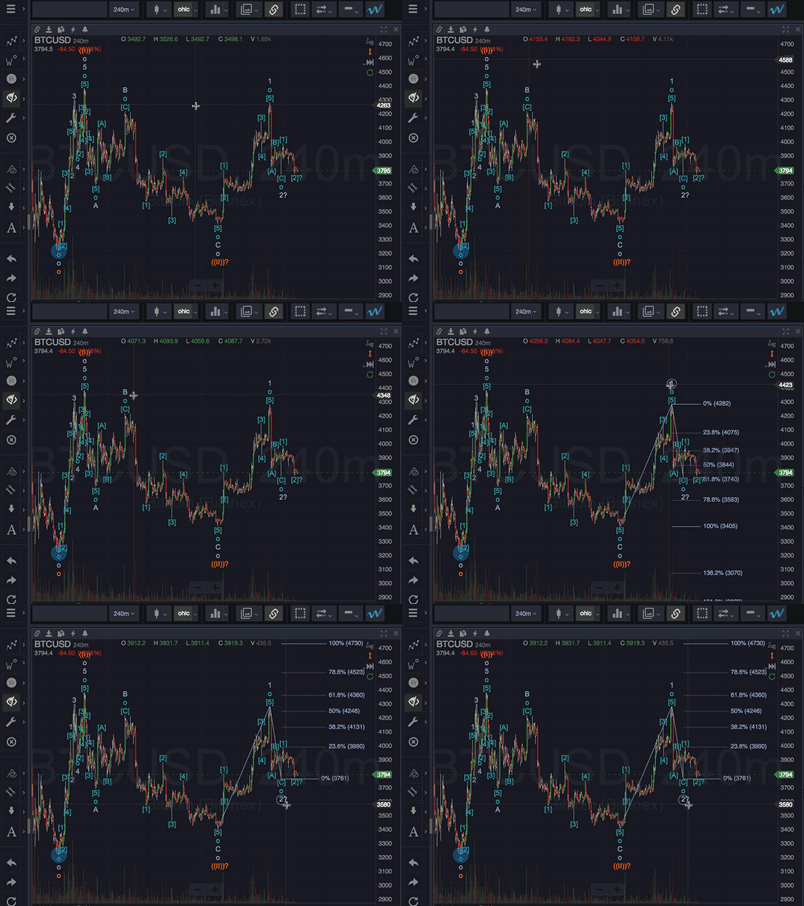
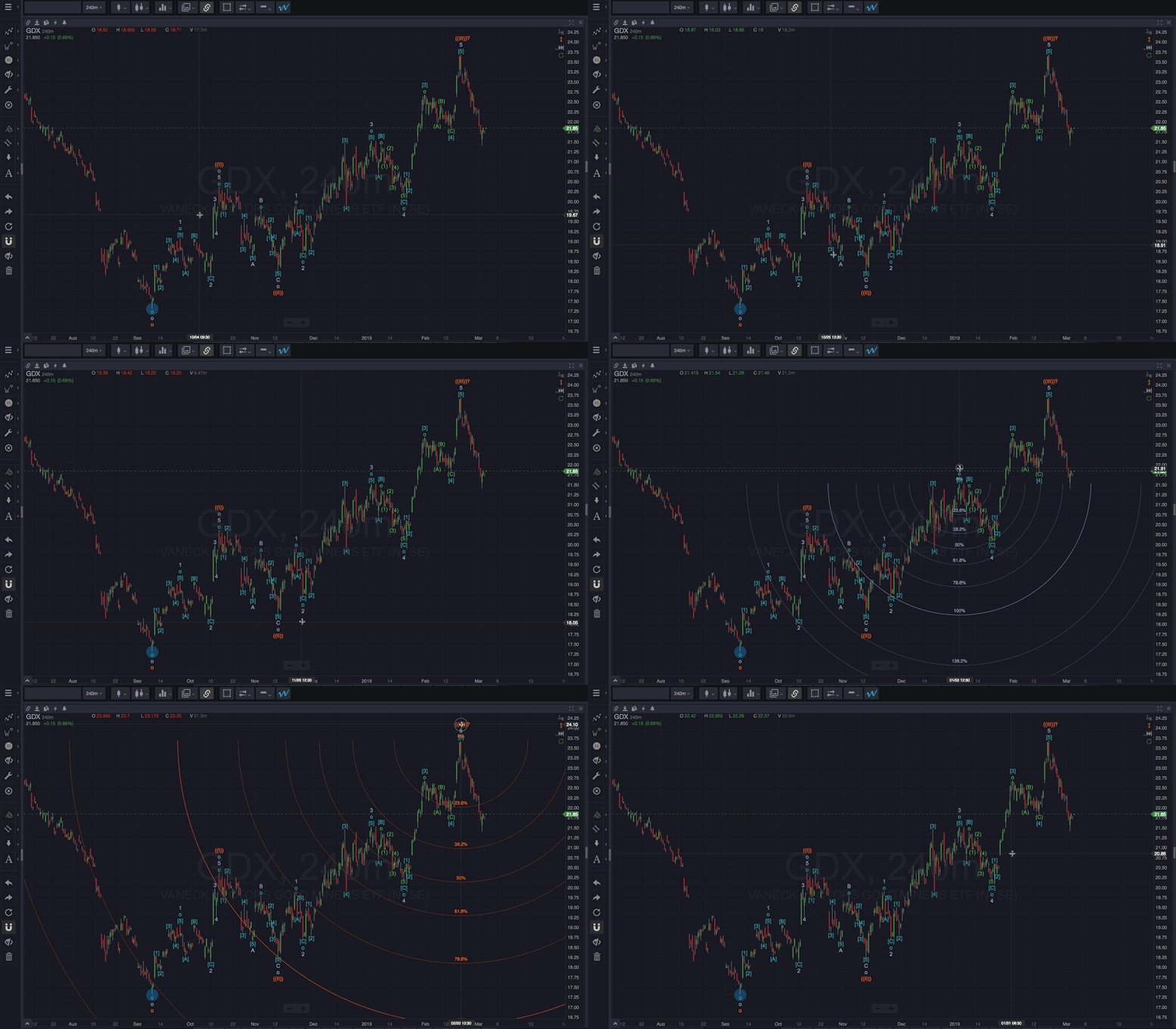
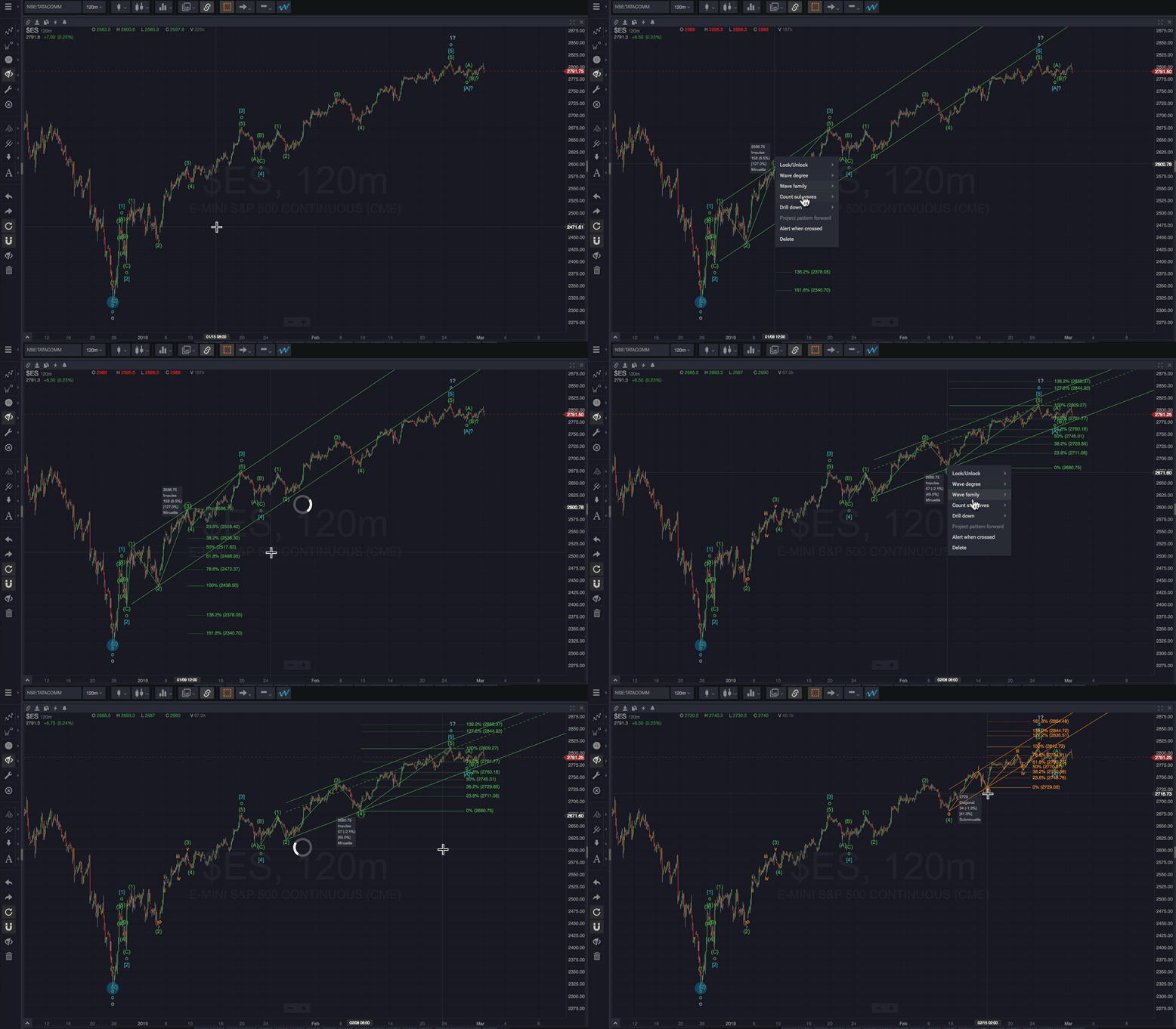
When enabled, hovering your mouse over a wave label will automatically show minimum target support or resistance areas (depending on the wave) for the next wave in the pattern, using standard fibonacci mathematics and statistical modeling. Support/Resistance areas are not predictions per se, they are the highest probability zones for the next market turning point based on the current pattern, and they align with commonly accepted Elliott Wave expectations.
Smart Support and Resistance areas are an extremely powerful guide to anticipating market turning points and identifying high probability entries/exits. And, when combined with features like Timeframe Drilldown can help lead the way to quite accurate timing.
Additionally, inspecting past support/resistance areas is a key component of evaluating and building confidence in a given Elliott Wave count. The more in line with statistical expectations a given wave count is at various degrees, the more confidence is suggested.
Smart Fibs™
When enabled, hovering your mouse over a wave label will automatically show Fibonacci retracement or extension levels, depending on the wave. The Smart Fibs know when you’re interested in extensions versus retracements based on the wave that you hover over. Hover a wave 1 to see the Fibonacci retracement levels in anticipation of wave 2. Hover a wave 2 to see Fibonacci extension levels in anticipation of wave 3.
Smart Elliott Channels™
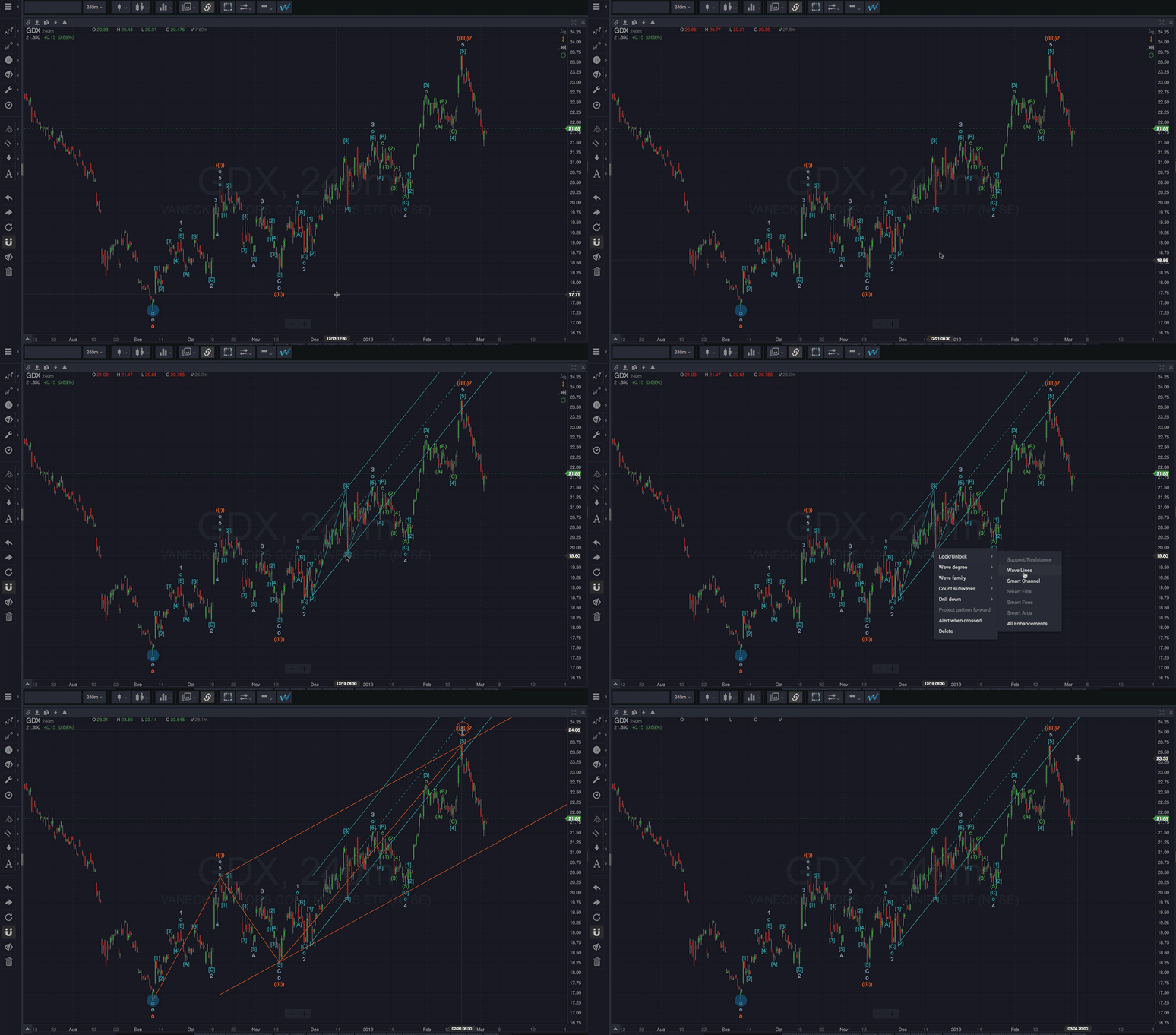
When enabled, hovering your mouse over a wave label will automatically show Elliott Trend Channels calculated up through the selected wave. So, when you hover a wave in a pattern, the channel that is displayed is the same channel that you would have been able to calculate at the point in time that the wave occurred. Hence, when you hover a wave 1 in an impulse pattern, no Elliott Trend Channel will be displayed.
Smart Fans™
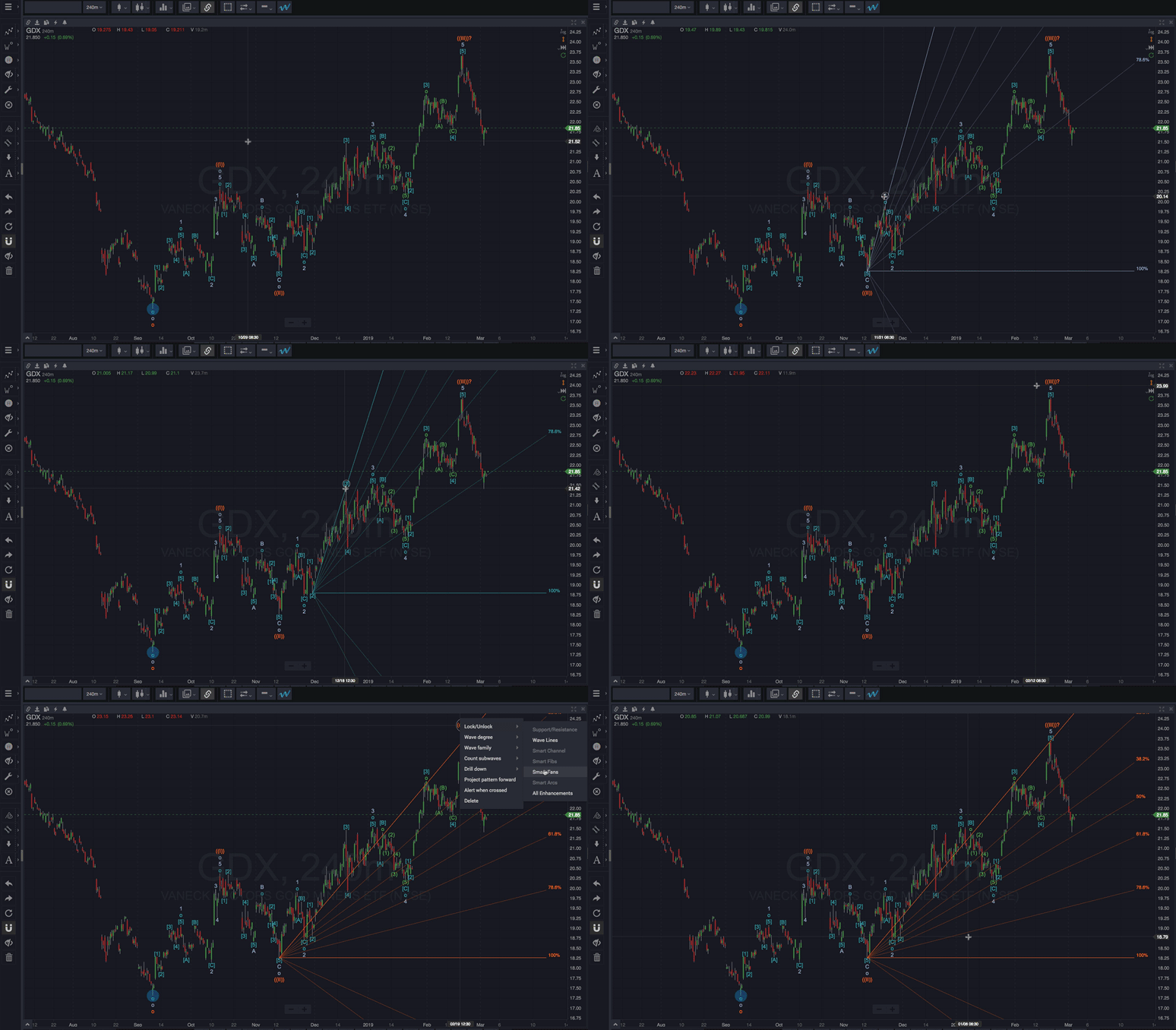
When enabled, hovering your mouse over a wave label will automatically show Fibonacci fan retracement levels.
Smart Arcs™
When enabled, hovering your mouse over a wave label will automatically show Fibonacci retracement or extension arcs, depending on the wave.
Smart Pitchforks
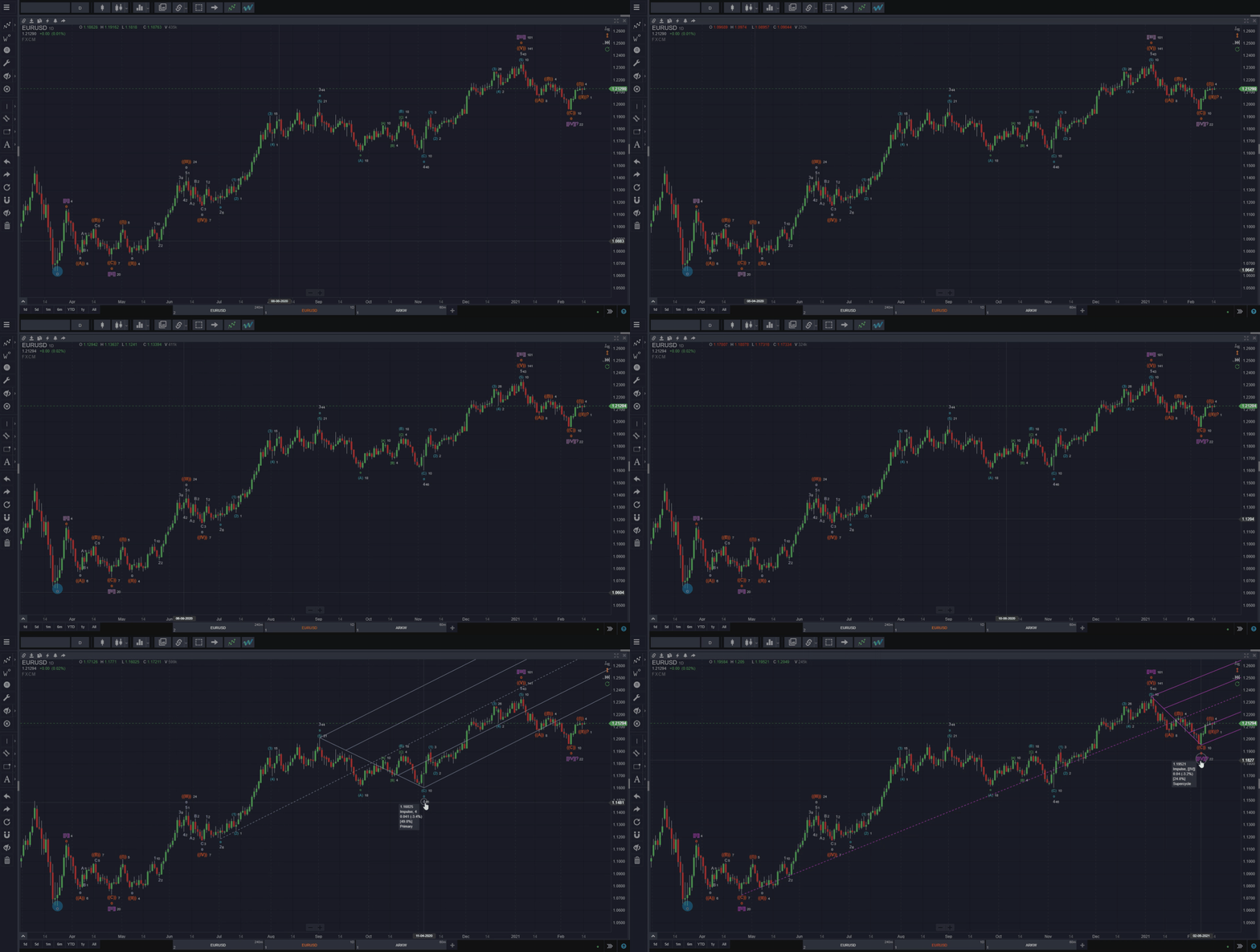
When enabled, hovering your mouse over a wave label will automatically show the Smart Pitchfork for the wave in question. You can select your preferred style of pitchfork (Andrew’s, Schiff, or Modified Schiff) in the Smart Tools tab in the platform settings menu.
Show Wave Lines
When enabled, hovering your mouse over a wave label will show the lines connecting the subwaves of the wave pattern. You can lock the wave lines of a pattern on the chart by right-clicking on any wave in the pattern, then selecting “Lock/Unlock” in the pop-up menu, followed by clicking on “Wave Lines”.
Click this to toggle on and off the lines between all wave points that are currently on the chart. It might be useful to use the “Hide waves below a specific degree” function while displaying all the wave lines to keep your workspace tidy.
Show # Bars
This feature places the number of bars it took for a particular wave to complete next to the wave label on your chart. This feature allows you to quickly see how price action has been behaving whilst forming waves.
Show wave info
Wave info refers to the dialog box that pops up when you hover over one of the waves in a wave pattern. You’ll be able to see the price level of the wave, the type of wave pattern, the most recently completed subwave in the emerging pattern, the number of points the wave comprises of, what the wave represents in terms of a percentage move on the instrument, the ratio of the wave in comparison to it’s preceding wave, and lastly, the degree of the wave.
The ESCape key on your keyboard can be used throughout the workspace to get you out of trouble or signify your drawing intent. You might get into trouble by accidentally clicking to start a drawing. Or, you might just change your mind after starting an operation that opens a dialog. Here are some specific situations where the ESCape key can streamline your workflow.
Canceling drawings before they are finished
If you’ve either accidentally started drawing on a chart, or simply change your mind after starting a drawing, hit the escape key to cancel the drawing operation. Any partial drawings that have been added to the chart will be removed. However, the drawing tool that you were using will remain active, so you can start the drawing again if you like.
Manually drawing partial Elliott Wave patterns
Wave drawing tools work a little differently than other drawing tools. You can use the escape key to draw part of a pattern on a chart – this feature is unique to WaveBasis. For example, you can draw waves 1 and 2 on a chart, then hit the escape key to stop drawing.
Waves 1 and 2 will remain on the chart, and then you can treat them the way you would any other waves by combining the use of any of the special wave and pattern-oriented tools. The Project pattern forward feature, for example, is especially useful in these scenarios. It’s a way to very quickly devise a wave pattern forecast on an area of the chart with a few clicks.
Disabling the active drawing tool
As described above, if you hit the escape key after you’ve already started drawing on a chart, the drawing will be canceled (or paused in the case of wave drawings). However, if a drawing is not currently active, then hitting escape will disable the drawing tool completely. This is a convenient way to get out of drawing mode if you’re finished annotating a chart.
Canceling popup dialogs
Most of the dialogs in WaveBasis can be canceled by hitting the escape key. In these scenarios, hitting escape is equivalent to clicking the Cancel button on the dialog.
Studying multiple timeframes in parallel is a crucial aspect of mastering the Elliott Wave approach. The Drilldown feature greatly streamlines multi-timeframe analysis, allowing you to “zoom in” on a section of a wave count, while keeping the larger context in clear focus. This makes it extremely easy to refine your analysis toward taking trading action.
Drilling down is similar to Counting Subwaves, except the automatic subwave count that you compute will be at a lower timeframe than your existing wave count. So, instead of counting a subsection of an existing wave count at the same timeframe as your current chart, you can drill down to a lower timeframe to automatically generate wave patterns on that subsection.
This is an extremely powerful way to refine a wave count forecast. This is also an indispensable tool for establishing timing expectations for upcoming trade entry/exit opportunities.
Also, when combined with the Alternate Wave Counts gadget, drilling down to lower timeframes is an efficient way to quickly understand and objectively manage risk.
How do I do it?
First, you’ll need to have a wave count (or at least an individual pattern) on your chart. You can accomplish this by running an automatic wave count, however, the Drilldown feature also works with manually drawn waves. Then…
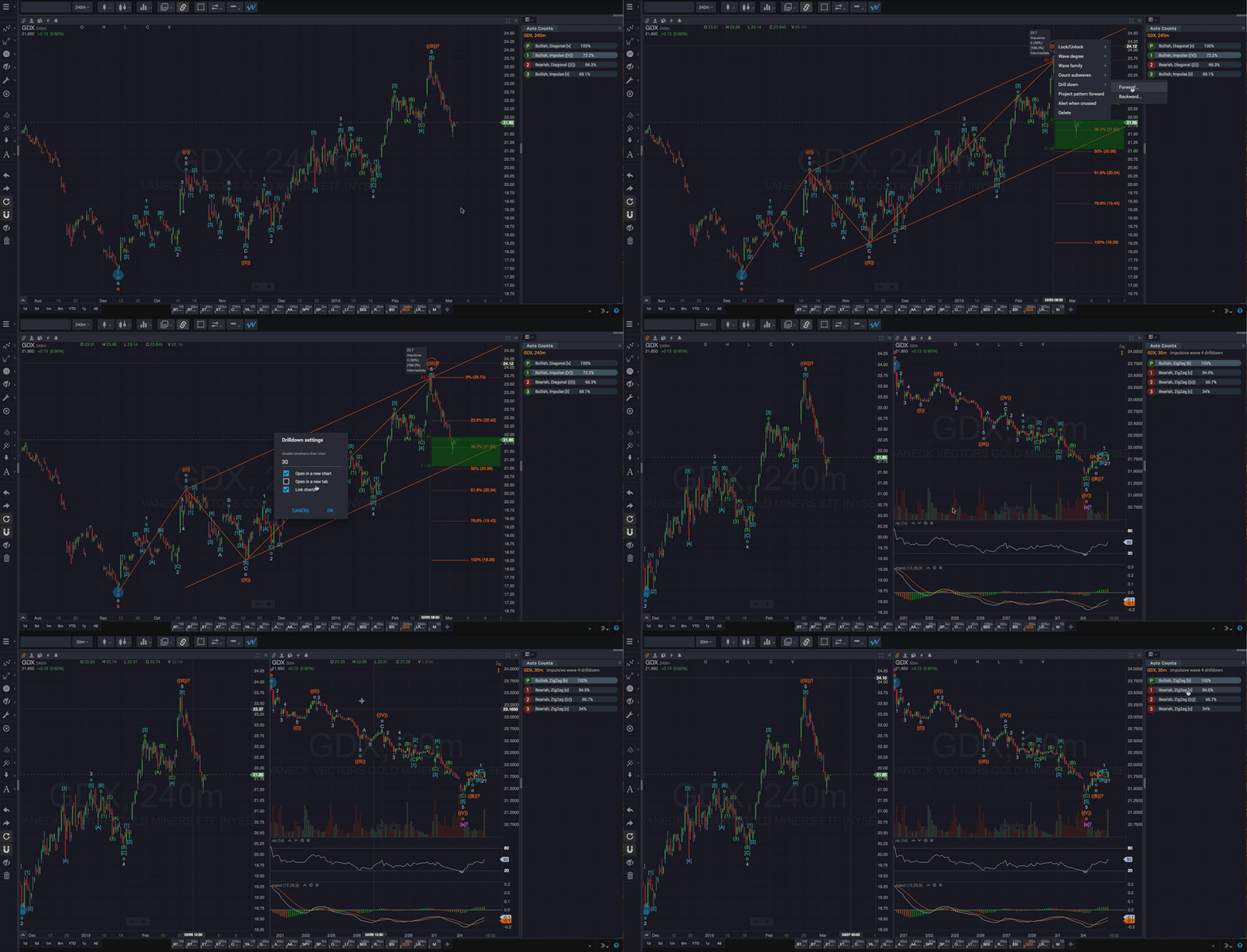
Right-click on a wave in an area of interest
Choose Drill down
Choose Forward or Backward, depending on whether you’d like to analyze the area after or before the wave you right-clicked.
The Drilldown settings dialog will open with a few options…
Enter a chart resolution/timeframe using abbreviated format. The timeframe should be smaller than the current chart’s. For example, if the chart is a daily chart, you can enter “60” to drill down to 60-minutes.
By default, the drilldown results will be opened in a new chart which will be added to your current tab, uncheck this box if you prefer to replace the current chart with the new drilldown chart.
If you want the new drilldown chart to open in a new tab, check the Open in a new tab checkbox
If you check Link charts, your charts will automatically be linked after the drilldown wave count is calculated. The is very useful for keeping yourself oriented within the larger timeframe context when you switch your attention to the smaller timeframe wave count. This option is only valid when Open in a new chart is also checked.
When should I use it?
There are two main scenarios when drilling down is useful…
With completed waves
You can drilldown to count the subwave patterns between existing waves in a wave count or pattern. This can be useful for confirming internal subwave structure between existing waves in a wave count at smaller timeframes. This can be important when interpreting or evaluating the count, or when comparing counts, for example. You can drill down between completed waves either forward or backward in time,
With incomplete patterns
This is the most common and most powerful way to use the Drilldown feature. It can also be used to count, re-count, or update unconfirmed pattern areas in evolving wave patterns at the end of a wave count. This is accomplished by right-clicking a wave with a question mark [?] next to it, then following the steps noted above. Drilling down with completed waves (as described above) is great way to more closely evaluate previously completed sections of an established wave count. Using it with incomplete patterns can be the most effective way to track a live market through still-evolving patterns.
This can be particularly useful for quickly refining your lower timeframe structure expectations as patterns near-completion around anticipated market turning points. This not only helps you more seamlessly anticipate pattern twists and turns, particularly on smaller timeframes, but it also helps you maintain a consistent sense of overall larger timeframe context regardless of your trading timeframe. Drilling down at the end of incomplete patterns is also a great technique for refining timing on trade entries/exits.
Alternate drilldown wave counts
When using the drilldown feature with incomplete patterns as described above, the integrated Alternate Wave Counts gadget will display a primary count and up to 3 alternate drilldown wave counts for the relevant area of the chart.
If the Alternate Wave Counts gadget isn’t already visible, you can add it to either of the gadget areas in your workspace as described in the gadgets section. Combining timeframe drilldown analysis with the Alternate Wave Counts Gadget is a powerful way to track multiple evolving count possibilities simultaneously. This is a key aspect of gauging and managing risk as patterns evolve. It can also be instrumental in identifying low risk, high-probability entry points.
The AutoSync feature runs an automatic wave count each time you scroll a chart forward in time. This is intended to help simulate what might have happened in the past as Elliott Wave counts evolved. This similar to “playing back” past Elliott Wave counts, and can be useful for getting a feel for automatic wave counts by inspecting past market periods.
The AutoSync icon displays with the other price axis tools in the upper right corner of the chart. The axis tools display only when the mouse cursor is hovering over the chart. The AutoSync icon will only display after you’ve run an automatic wave count on the chart.
Also, the small arrow next to the icon opens a menu giving you options for the two AutoSync modes.
NOTE: It is strongly recommended that you combine the Alternate Wave Counts gadget with the AutoSync feature. Assessing alternate wave counts when analyzing past market periods is the best way to evaluate how your actual analysis might have proceeded during those past periods.
To activate AutoSync:
Set the Date Range option to Visible chart range or a fixed number of bars
Scroll the chart back in time so that more recent bars are hidden off of the right edge of the chart.
Run an automatic wave count using the blue ‘W’ icon (as described here). The wave count will only include the range of the chart that is visible on your screen. So, be sure that you’ve included a time range (especially the starting point) that is sensible for your trading objectives, as described in previous sections.
Click the AutoSync icon in the upper right of a chart, next to the price axis. The icon will turn yellow when it is enabled.
Choose an AutoSync Mode as described below by clicking on the arrow next to the icon and choosing an option from the dropdown menu that appears.
AutoSync Modes
Walk Forward
This will keep a fixed starting point as each new AutoCount is calculated. This means the number of bars included in the wave count analysis will increase with each new AutoCount. This is the default, and except in special circumstances will generally give the best results. Also, this mode works best when the Date Range is set to Visible chart range.
For example, if there are 311 bars in the current AutoCount, and you pan/scroll forward 5 bars, a Walk Forward AutoSync will run a new AutoCount with the last 316 bars included in the analysis.
Slide Forward
This will keep a fixed number of bars as each new AutoCount is calculated. This, in effect, slides a fixed window forward in time. So, if your Date Range is set to the “Last 250 bars”, the AutoCount will always include the last 250 bars as you pan/scroll forward in time. This more works best when the Date Range is set to a fixed number of bars.
Some notes
Both AutoSync modes always use the last visible bar on the chart as the ending date of the AutoCount.
AutoSync will only trigger (causing a new AutoCount to calculate) when the chart is panned/scrolled forward using the click-and-drag technique. This makes it easy to control when new wave counts are calculated, while still being able to move and navigate around the chart freely using other techniques.
When you are in AutoSync mode you can continue to use other other analysis tools, including drawing tools, interactive gadgets, and counting subwaves.
To reset AutoSync mode simply scroll the chart back in time to where you’d like to start, and use the blue ‘W’ to compute a new automatic wave count.
Whenever you hover your mouse over a chart, the axis tools will display in the upper right corner of the chart, next to the price scale. Click the green “recycle” icon, as shown below, to re-run the last full count or subwave count that you ran on the chart.
When you re-run an automatic wave count using this technique, the same parameters that initially created the wave count will be used. This includes the Date Range as well as the Bias setting. However, any new bars that have arrived from the data feed will be included in the wave count computation.
This is a convenient way to get a fresh Elliott Wave perspective on the range of a chart that you may be tracking. However, if your goal is to update an existing stable wave count, Counting Subwaves might more effectively meet your objectives.
You can configure a chart so that each time you change the symbol or resolution an automatic wave count will be calculated for you automatically. Please see this section for details.
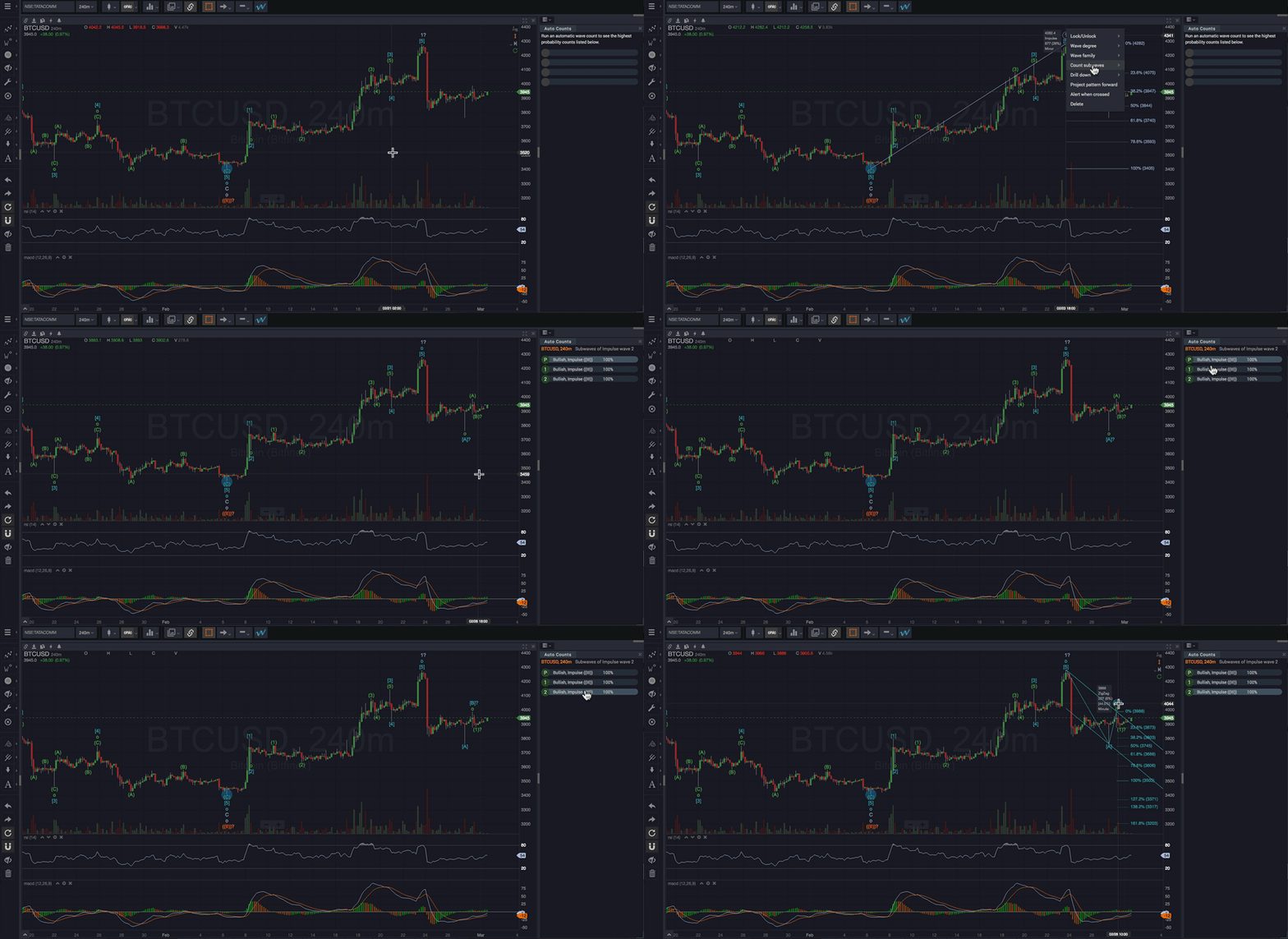
The Count Subwaves feature allows you to perform an automatic wave count on smaller subsections of an existing wave count. The automatic subwave count is performed at the same timeframe/resolution as the current chart, and this allows you to count, re-count, or update partial areas of an established count. This is useful for refining or bringing further definition to existing wave counts.
How do I do it?
Access the feature by right-clicking on a wave in an area of interest and selecting Count Subwaves from the menu that appears. You can then choose Forward or Backward to indicate whether you’d like to count subwaves after or before the wave that you right-clicked on. Additionally, the wave that you right-click will define the context for the automatic subwave count. So, only wave pattens which are valid within that context will be searched for.
NOTE: Counting subwaves will replace any existing subwaves on the section of the chart that you target.
When should I use it?
There are two main scenarios when this feature is particularly useful…
With completed waves
You can count the subwave patterns between existing waves in a wave count or pattern. This can be useful for confirming subwave structure between existing waves in a wave count when interpreting or evaluating the count, or when comparing counts, for example. You can count subwaves for completed waves either forward or backward in time, as shown in the example below.
With incomplete patterns
Count Subwaves can also be used to count, re-count, or update unconfirmed pattern areas in evolving wave patterns at the end of a wave count. This is accomplished by right-clicking a wave with a question mark [?] next to it, then selecting Count Subwaves->Forward. Using Count Subwaves with completed waves (as described above) is great way to more closely evaluate previously completed sections of an established wave count. Using it with incomplete patterns can be the most effective way to track a live market through still-evolving patterns.
This can be particularly useful for quickly refining your subwave structure expectations as patterns near-completion around anticipated market turning points. This not only helps you more seamlessly anticipate pattern twists and turns, particularly on smaller timeframes, but it also helps you maintain a consistent sense of overall larger timeframe context regardless of your trading timeframe. Counting subwaves at the end of incomplete patterns is also a great technique for refining timing on trade entries/exits.
Alternate Subwave Counts
When using Count Subwaves with incomplete patterns as described above, the integrated Alternate Wave Counts gadget will display a primary count and up to 3 alternate subwave counts for the relevant area of the chart.
If the Alternate Wave Counts gadget isn’t already visible, you can add it to either of the gadget areas in your workspace as described in the gadgets section. Combining subwave analysis with the Alternate Wave Counts Gadget is a powerful way to track multiple evolving count possibilities simultaneously. This is a key aspect of gauging and managing risk as patterns evolve. It can also be instrumental in identifying low risk, high-probability entry points.
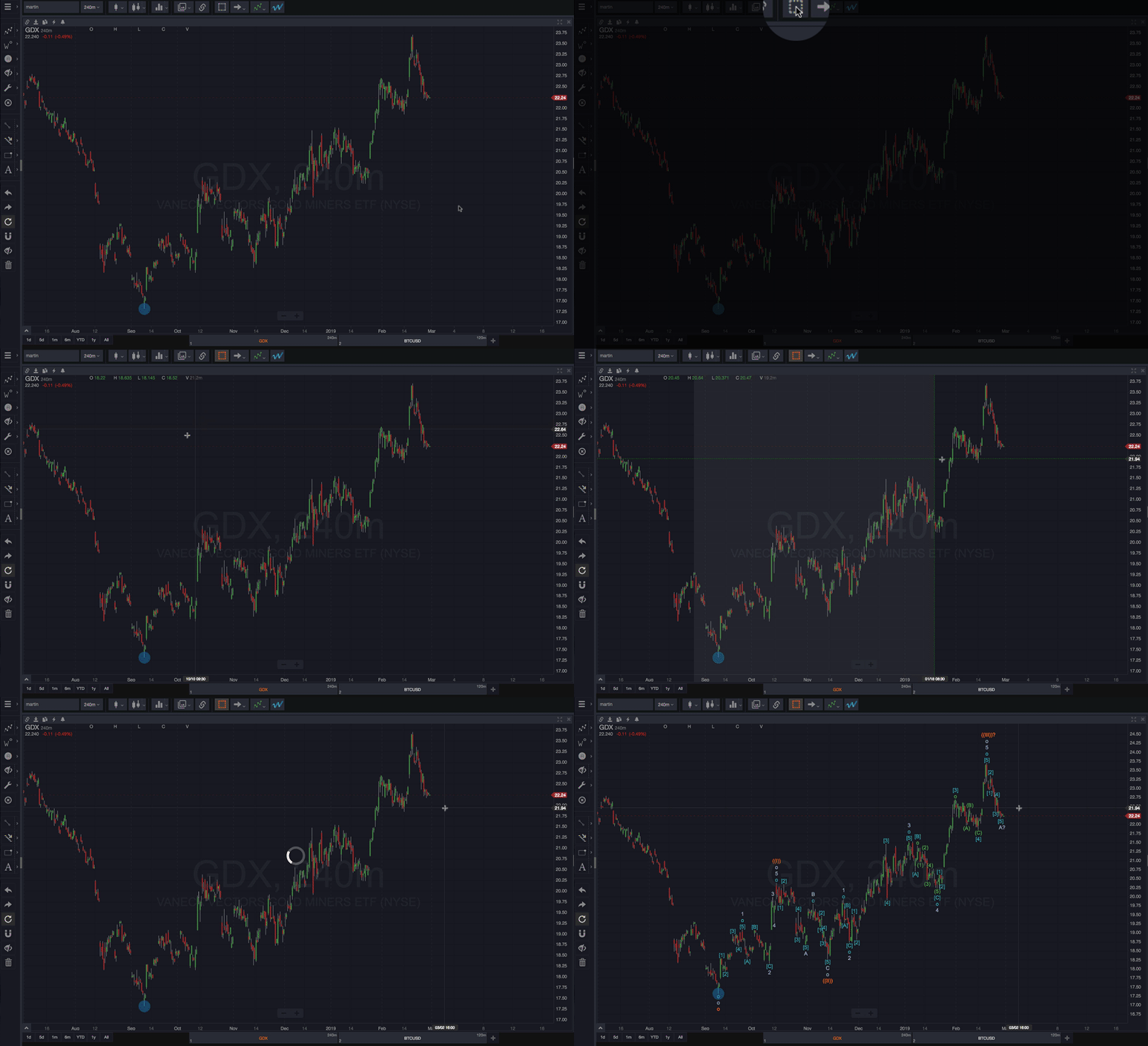
This technique can be used as a way to analyze a specific subsection of a chart, or simply as a convenient alternative to traveling up to the top toolbar. Select a chart range to count following these steps as demonstrated below:
Enable the Range Selection Tool
Click on the chart where you would like to start the count (just “click”, don’t hold to drag)
Click again where you would like the count to end
Immediately after you click the second time, an automatic wave count will be calculated on the highlighted area of the chart. If you want to change your selection after clicking the first time, simply hit the ESCape key on your keyboard.
NOTE: You can use this tool repeatedly without having to enable it before each use by simply enabling the “Draw Continuously” tool in the lower left toolbar.
As discussed in previous sections, one of the easiest ways to run an automatic wave count is to click the blue “W” in the top toolbar. However, there are several other ways to run an autocount. Each auto-counting technique is intended to meet the needs of various workflow or analysis objectives as discussed in the sections that follow.