• Reference Guide

Using The Smart Tools

The Smart Tools can greatly accelerate your wave analysis workflow, by making commonly used tools and drawings instantly available on charts, without the need to use any other tools or drawings. The Tools are activated by hovering over waves in a chart, and they’re Smart because they are always aware of the Elliott Wave pattern context in which they are being activated. They anticipate the analysis “question” you’re asking, and enhance the chart in the appropriate way.

From displaying the highest probability target resistance range for a wave 3 by hovering over a wave 2, to automatically displaying the fibonacci retracement levels for a potential wave 2 by hovering over a wave 1, the Smart Tools allow you to complete a more comprehensive analysis in far less time. They also remove the tedium and repetition from inspecting and annotating an Elliott Wave count.

Gathering key trading decision support information about wave counts is far more streamlined, objective, and precise than using traditional chart analysis tools.


IMPORTANT NOTE: None of the WaveBasis Smart Tools use any kind of “lookahead” of any kind. All forward-looking projections or levels are calculated in the same way they would if they had been calculated during the normal course of trading. No cheating!


Smart Tools can each be enabled or disabled independently by opening the Wave Enhancements menu from the left toolbar as shown below:


Learn about each of the Smart Tools in the following sections.

Read More
  • Reference Guide

Wave Drawing Tools

Manually drawing wave patterns in WaveBasis is as simple as drawing anything else in WaveBasis, and easier and more flexible than in any other Elliott Wave software.
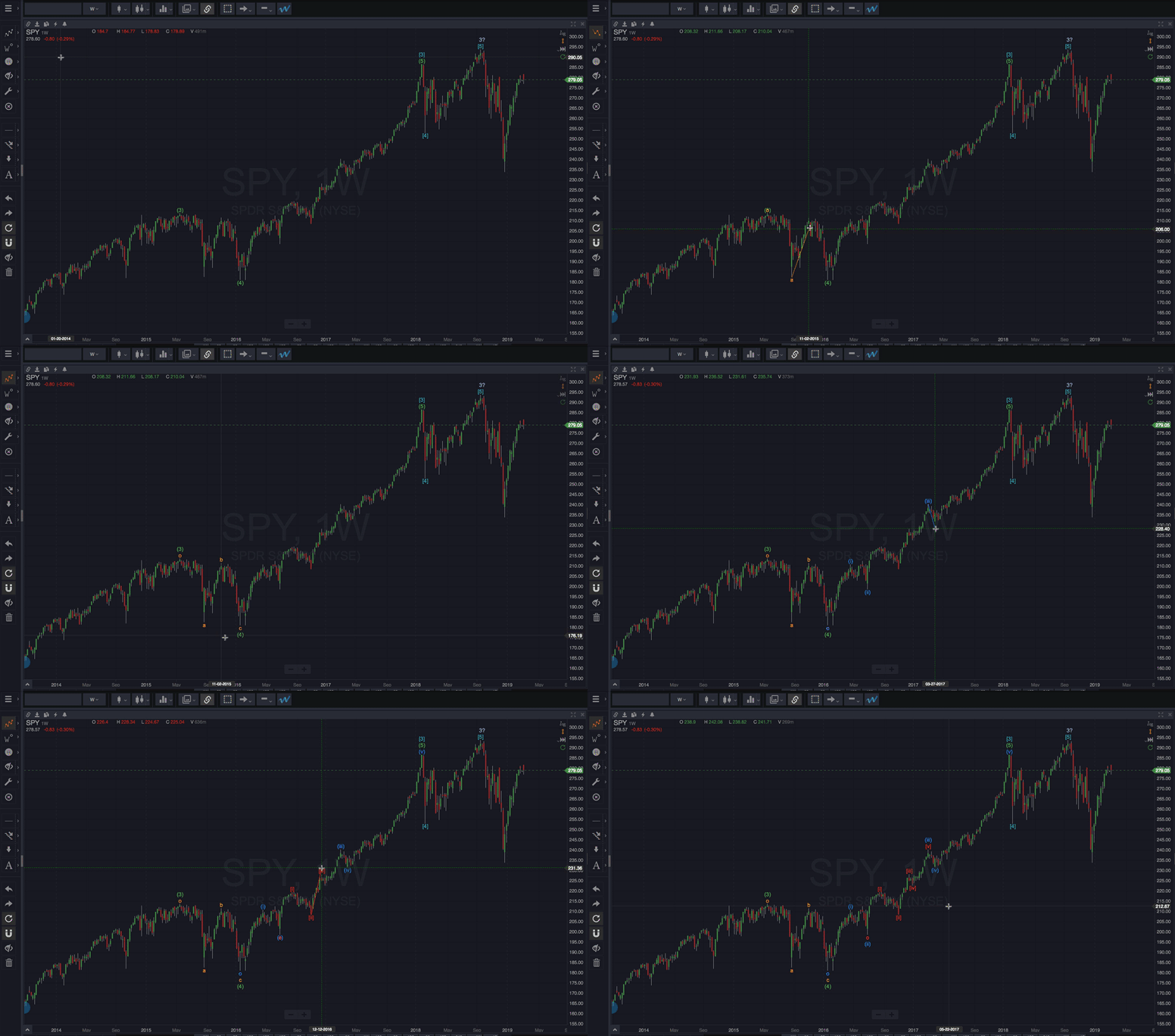
WaveBasis adds some unique features that make the process particularly wave analyst-focused and intuitive. The tools anticipate your needs in important ways to accelerate your analysis, to help you get to a trading decision efficiently. Spend less time messing around with tools, and more time focusing on trading.

The smart wave drawing tools are located in the upper left toolbar in the workspace, which looks like the toolbar on the left.


NOTE: all Smart Tools work the same way with manually drawn waves as they do with waves created by an automatic wave count.


Automatic wave stacking

Stacking waves automatically is a unique workflow-accelerating aspect of drawing waves with WaveBasis. By default, whenever you draw waves that overlap or are nested at multiple degrees, wave labels will be automatically stacked in the correct order. Higher degree waves will be stacked further from the price bars.

The is a real time-saver, automatically keeping your chart organized, and is one of our most popular features. It also allows you to effortlessly create professional-looking charts.

You can change this behavior by choosing a different drawing mode.


Automatic wave degrees

We’ve taken automatic wave stacking one step further by including automatic wave degree management. What this means is that when you manually draw wave patterns, you don’t have to decide which degree to assign to them – WaveBasis handles this for you.

This is another true time-saver that streamlines the process of manually applying Elliott Wave analysis. It allows you to focus on your analysis of the wave patterns themselves, without having to continually shift your focus between disparate tools.

Automatic wave degree management is an optional feature that can be enabled/disabled in the Application Preferences.


Read More
  • Reference Guide

The Gadgets

In addition to its core capabilities, the WaveBasis platform also extends your workspace with a collection of gadgets.

Each gadget adds unique and often exclusive features to the platform to help you get to your next great trade with confidence. Learn about each gadget in the list below. Find out how to access gadgets.

WaveBasis is constantly expanding its capabilities. Very often, new platform functionality is released in the form of new gadgets. Check back to this section often, or visit our blog for the latest news about new and updated gadgets.


In-App Gadget Help

You can get helpful tips about Gadgets straight from within each Gadget. All you have to do is hover over the Gadget’s name you’re looking for help on and click the blue “Info” icon that illuminates next to the gadget name.

The tooltip for the gadget will pop up and display information about the gadget. If you would like to get even more help, simply click on the text “Learn more…”. Once you’ve done this a new browser tab will open and load the documentation related to the specific gadget on the WaveBasis website.


Learn more about each of the available gadgets…

Read More

Video Tutorials

Although some of the older tutorials below show a previous version of the WaveBasis tools, the concepts themselves are still quite relevant and applicable to the most recent platform version. So, we’ve included them here for your viewing and learning pleasure!

Read More
  • Video Tutorials

Finding trade setups


WaveBasis was designed from the ground up with one goal in mind: to provide the best Elliott Wave-focused trading decision support available anywhere. This means providing actionable insights to help you find the lowest risk, highest reward trading opportunities quickly, and to trade them with confidence.

This video walks you through some typical workflows for identifying high probability trading opportunities, using a combination of tools in the WaveBasis collection.

Read More
  • Video Tutorials

Next Subwaves: Identifying market context

Are we in an uptrend? Could the market be bottoming? Should you expect choppy waters ahead?

Whether you’re looking for a new trade entry, considering taking profits on an existing position, or setting a stop, having a strong sense of a market’s context is a critical step toward getting to the right decision and taking the right action. Elliott Waves can tell you a lot about a market’s context, and this video shows you how to unlock this insight using the Next Subwaves list in WaveBasis.

Read More
  • Video Tutorials

Using the smart tools

Once you have an automatic wave count on your chart, you’ll want to know what the count is telling you about the market’s likely next moves. Identifying the most likely support and resistance levels is critical to being prepared for those next moves and executing a successful trade plan.

The Smart Tools in WaveBasis make it easier than ever to add various Fibonacci studies and Elliott trend channels to a chart. These studies are constant companions to Elliott Wave analysis, and can be key to accurately forecasting where a market will reach a turning point. This video shows you how to make the most of them.

Read More
  • Video Tutorials

Getting started with automatic wave counts

From important things to keep in mind before running an automatic wave count, to evaluating wave counts and identifying low-risk, high-reward trading opportunities, this video will help you take your next big step along the path to using WaveBasis to trade Elliott Waves like a professional.

Read More
  • Video Tutorials

Detailed Introduction to WaveBasis

This video provides a brief overview, highlighting key features, and introducing the high-level workflows on the WaveBasis platform. This is a great way to get oriented before diving deeper into the parts of WaveBasis that are best suited to your experience and objectives.


Read More
  • Charts

Can I save a chart and come back to it later?

Yes, you can also save charts and view them later in the Chart Manager, by clicking the Save button in the chart title bar

Learn more about Saving Charts.

Read More